Supermetrics for Meta Ads: Automated Reporting Setup Guide
Complete guide to setting up Supermetrics for Meta Ads automated reporting. Connect data sources, build templates, and schedule reports across multiple platforms.
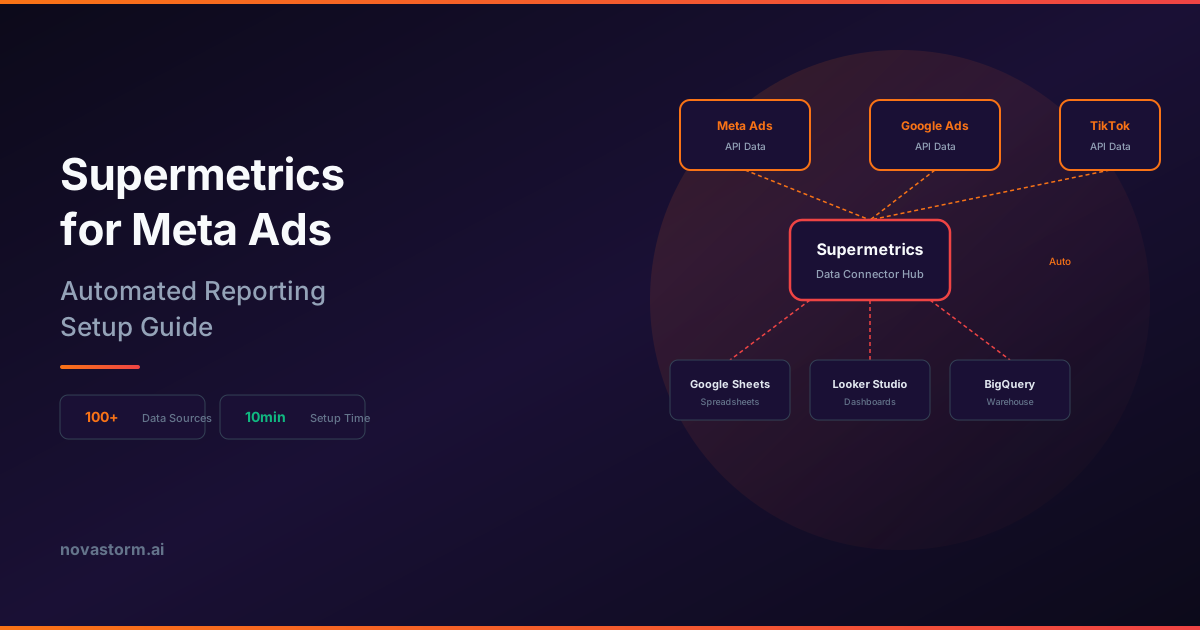
Manual reporting is the silent productivity killer in performance marketing. Copying data from Meta Ads Manager into spreadsheets, reformatting columns, updating charts, and emailing PDFs consumes hours that should be spent on strategy and optimization. Supermetrics Meta Ads reporting eliminates this busywork by automating the entire pipeline from data extraction to final delivery.
As a leading data connector platform, Supermetrics pulls metrics directly from the Meta Ads API and delivers them into the reporting tools your team already uses. Google Sheets, Looker Studio, Excel, BigQuery, and data warehouses all become live dashboards that refresh on your schedule. This guide covers the complete setup process so you can have automated reports running within an hour.
What Supermetrics Does for Meta Ads Teams
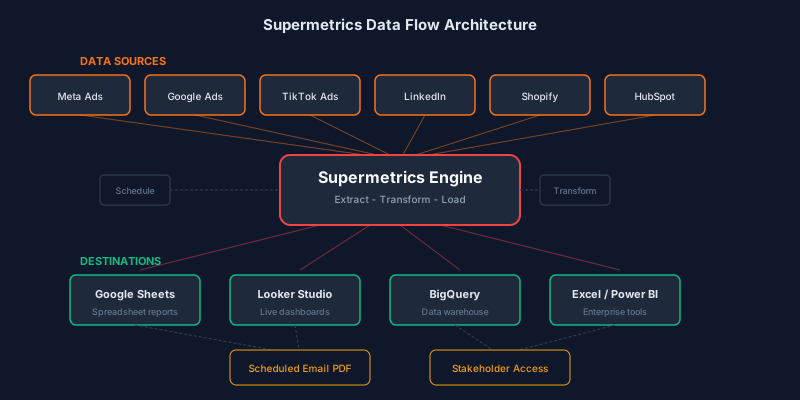
Supermetrics acts as a bridge between Meta Ads and your preferred reporting destination. It handles authentication, data extraction, transformation, and scheduling without requiring any code. For teams running Supermetrics Meta Ads reporting at scale, this means consistent data formats, automatic refreshes, and zero manual copy-paste operations.
The platform supports over 100 data sources, which means you can combine Meta Ads data with Google Ads, TikTok, Shopify, HubSpot, and dozens of other platforms in a single report. This cross-channel view is essential for understanding true marketing performance rather than evaluating each channel in isolation.
| Feature | Description | Benefit |
|---|---|---|
| Automated refresh | Schedule data pulls hourly, daily, or weekly | Always-fresh reports without manual work |
| Multi-account support | Pull data from dozens of ad accounts simultaneously | Agency-scale reporting in minutes |
| Custom metrics | Create calculated fields and custom formulas | Business-specific KPIs in every report |
| Data blending | Combine Meta Ads with other platform data | True cross-channel performance view |
| Template library | Pre-built report templates for common use cases | Launch reports in minutes, not hours |
| Historical backfill | Pull up to 3 years of historical data | Long-term trend analysis and YoY comparison |
Setting Up Supermetrics Meta Ads Reporting in Google Sheets
Google Sheets is the most popular destination for Supermetrics Meta Ads reporting because of its accessibility, collaboration features, and zero cost. The setup process takes less than 10 minutes and requires no technical expertise.
- Install the Supermetrics add-on from the Google Workspace Marketplace
- Open Google Sheets and navigate to Extensions then Supermetrics then Launch sidebar
- Select Facebook Ads as your data source and authorize your Business Manager account
- Choose the ad accounts you want to report on
- Select your date range (use dynamic ranges like Last 30 Days for auto-updating reports)
- Pick your metrics: Spend, Impressions, Clicks, CTR, CPC, Conversions, ROAS
- Choose dimensions: Campaign Name, Ad Set Name, Date, Age, Gender, Placement
- Click Get Data to pull results into your spreadsheet
Use Supermetrics query naming conventions from the start. Name each query tab with a prefix like 'SM_' followed by the data type, such as SM_CampaignDaily or SM_AdSetWeekly. This makes scheduled refreshes and troubleshooting much easier as your reports grow.
Building Multi-Account and Cross-Channel Reports
Agencies and multi-brand companies get the most value from Supermetrics when they centralize data from multiple Meta Ads accounts into unified reports. Instead of logging into each Business Manager separately, you can pull all accounts into a single spreadsheet with account-level segmentation built in.
To build a multi-account report, select multiple ad accounts in the Supermetrics query builder and add Account Name as a dimension. The resulting data table will include a column that identifies which account each row belongs to, enabling pivot tables, filters, and cross-account comparison charts.
Cross-channel reporting follows the same pattern. Create separate Supermetrics queries for Meta Ads, Google Ads, and any other sources, then use VLOOKUP or INDEX-MATCH formulas to join them on shared dimensions like date or campaign name. The result is a single consolidated view that answers the question every CMO asks: where should we allocate budget next month?
Scheduling and Automation Best Practices
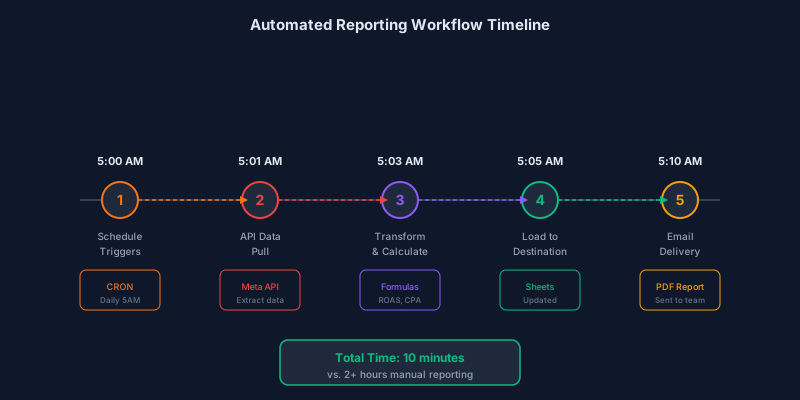
The real power of Supermetrics Meta Ads reporting emerges when you automate the entire workflow. Within the Supermetrics sidebar, click the schedule icon next to any query to set a refresh cadence. Most teams use daily refreshes triggered in the early morning, ensuring data is ready before the workday begins.
Stop wasting ad budget
NovaStorm AI cuts Meta Ads CPA by 40% on average. Start free.
| Report Type | Refresh Frequency | Best Schedule Time |
|---|---|---|
| Executive summary | Weekly (Monday) | 6:00 AM before leadership meetings |
| Campaign performance | Daily | 5:00 AM to catch overnight changes |
| Creative analysis | Daily | 5:30 AM for morning creative reviews |
| Monthly client report | Monthly (1st) | 7:00 AM first business day |
| Budget pacing | Daily | 8:00 AM for mid-morning budget checks |
| Quarterly business review | Quarterly | Day after quarter ends |
Combine scheduled refreshes with email triggers to create a fully automated reporting pipeline. When the data refreshes, Supermetrics can email the spreadsheet or a specific range as a PDF to your distribution list. Stakeholders receive fresh reports without any manual intervention.
Supermetrics for Looker Studio and Data Warehouses
While Google Sheets works for many teams, Supermetrics also connects Meta Ads data directly to Looker Studio, BigQuery, Snowflake, and other enterprise destinations. The Looker Studio connector provides a seamless integration that refreshes within the dashboard environment, eliminating the spreadsheet intermediary entirely.
For data warehouse destinations, Supermetrics pushes raw Meta Ads data into your warehouse on a schedule. Your analytics team can then transform, join, and model the data using dbt, SQL, or any other tool in your stack. This approach is ideal for organizations that need to blend advertising data with product analytics, CRM records, and financial data at scale.
If you are already sending data to a warehouse, use Supermetrics as the ingestion layer and build your reports on top of the warehouse. This single-source-of-truth approach prevents metric discrepancies that arise when different teams pull data through separate connectors.
Troubleshooting Common Supermetrics Issues
Even well-configured Supermetrics Meta Ads reporting setups encounter occasional issues. The most frequent problem is authentication expiration. Meta access tokens expire periodically, and when they do, your scheduled refreshes will fail silently. Check your Supermetrics account settings monthly and reauthorize any expired connections.
- Data discrepancy with Ads Manager: check timezone settings and attribution windows in both platforms
- Missing metrics: verify that the selected ad accounts have sufficient activity in the chosen date range
- Slow query performance: reduce the number of dimensions or narrow the date range to decrease data volume
- Rate limit errors: space out multiple queries by at least 5 minutes to avoid hitting Meta API limits
- Blank results after refresh: reauthorize the Meta Ads connection and confirm account access permissions
Setting up Supermetrics Meta Ads reporting is a one-time investment that pays dividends in saved time every single week. Whether you start with a simple Google Sheets dashboard or build a full warehouse pipeline, the core principle remains the same: automate data extraction so your team can focus on the insights and actions that actually move performance metrics forward.
Measuring the ROI of Automated Reporting
Quantifying the value of Supermetrics is straightforward. Track the hours your team currently spends on manual reporting each week, multiply by their hourly rate, and compare against the Supermetrics subscription cost. Most teams recover the investment within the first month. Beyond direct time savings, automated reporting reduces human error, ensures consistency across stakeholders, and frees up analyst capacity for higher-value strategic work.
Novastorm AI automates Meta Ads routine — from monitoring to optimization. Learn more at novastorm.ai
Disclaimer: This article was generated with the assistance of AI and reviewed by the NovaStorm AI team. While we strive for accuracy, we recommend verifying specific data points and consulting official sources (linked where available) for critical business decisions.
Ready to automate your Meta Ads?
NovaStorm AI takes full responsibility for your campaigns — from monitoring to optimization.
Get Started FreeRelated Articles
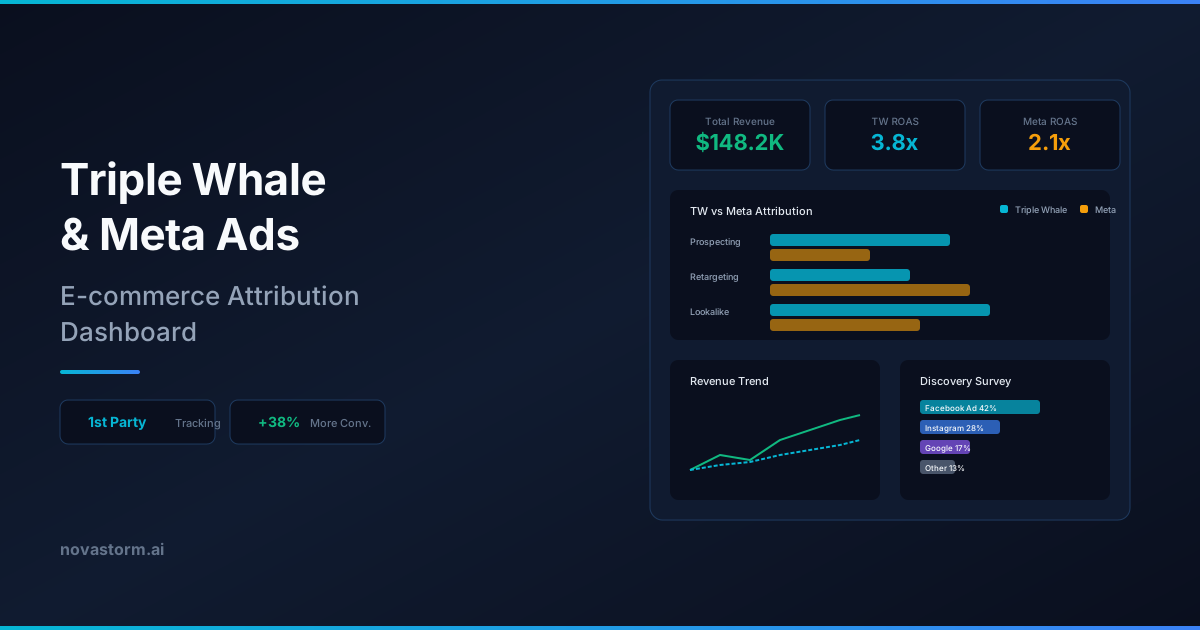
Triple Whale and Meta Ads: E-commerce Attribution Dashboard
Learn how Triple Whale improves Meta Ads attribution for e-commerce brands. First-party pixel tracking, server-side events, and real ROAS measurement explained.
Looker Studio and Meta Ads: Building Custom Performance Dashboards
Learn how to build custom Looker Studio dashboards for Meta Ads. Step-by-step guide to connecting data, creating visualizations, and automating performance reports.
Data-Driven Attribution for Meta Ads: Moving Beyond Last Click
Learn how data-driven attribution for Meta Ads replaces outdated last-click models to reveal the true impact of every touchpoint in your customer journey.