Looker Studio and Meta Ads: Building Custom Performance Dashboards
Learn how to build custom Looker Studio dashboards for Meta Ads. Step-by-step guide to connecting data, creating visualizations, and automating performance reports.
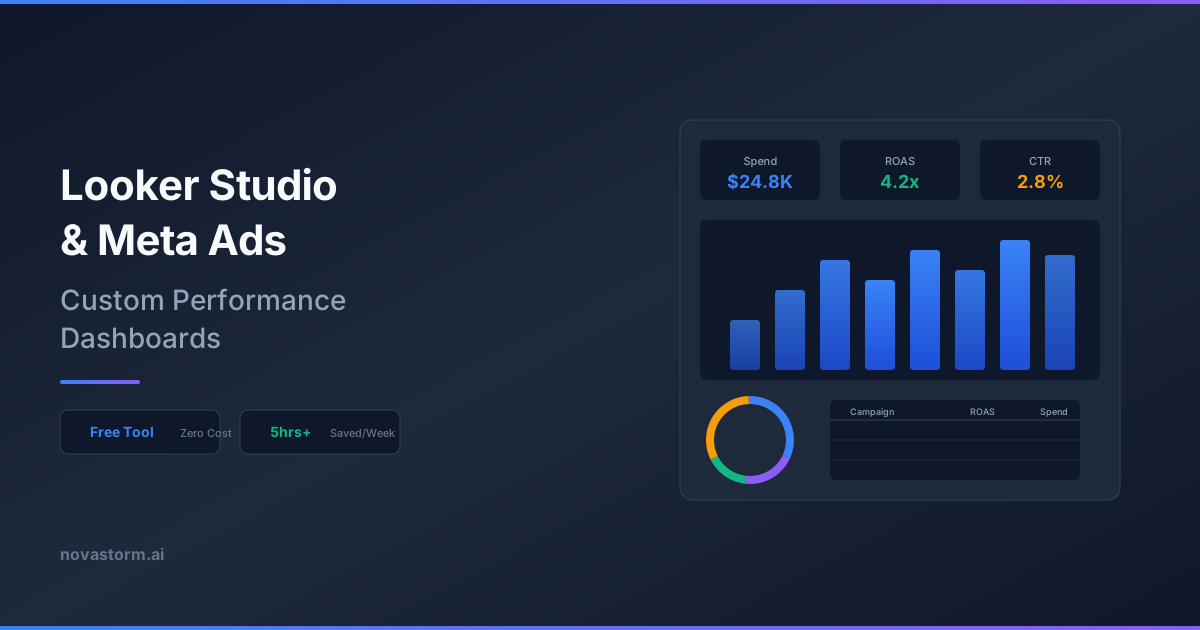
Meta Ads Manager provides basic reporting, but when you need to combine multiple data sources, create branded client reports, or build executive-level summaries, its native tools fall short. A Looker Studio Meta Ads dashboard solves this by giving you a free, flexible, and shareable reporting platform that transforms raw ad data into actionable insights.
Whether you manage campaigns for a single brand or dozens of clients, mastering this integration can save hours of manual reporting work every week. This guide walks you through connecting Meta Ads to Looker Studio, designing high-impact dashboards, and automating delivery so stakeholders always have fresh data at their fingertips.
Why Build a Looker Studio Meta Ads Dashboard
Meta Ads Manager was designed for campaign management, not comprehensive reporting. Teams that rely on it alone often struggle with limited cross-platform context, rigid visualization options, and no way to automate scheduled email reports. Looker Studio fills each of these gaps without adding cost to your tech stack.
A well-built Looker Studio Meta Ads dashboard centralizes your advertising KPIs alongside organic analytics, CRM data, and revenue figures. Decision-makers see one unified view instead of toggling between five different platforms. This single-pane approach accelerates optimization cycles and reduces the chance of misinterpreting siloed metrics.
| Capability | Meta Ads Manager | Looker Studio Dashboard |
|---|---|---|
| Cross-platform data blending | No | Yes |
| Custom branding and white-label | No | Yes |
| Scheduled email delivery | Limited | Full automation |
| Interactive date range filters | Basic | Advanced |
| Calculated fields and formulas | No | Yes |
| Free to use | Yes | Yes |
Connecting Meta Ads Data to Looker Studio
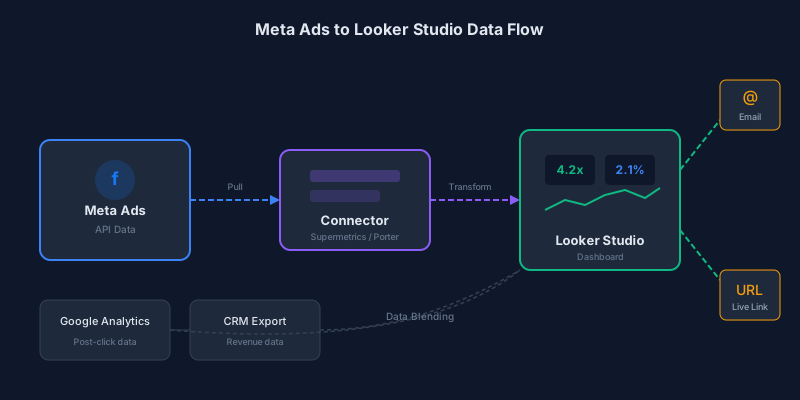
Looker Studio does not offer a native Meta Ads connector, so you need a third-party bridge. Several partner connectors exist, each with different pricing and data refresh intervals. The most commonly used options include Supermetrics, Funnel.io, Porter Metrics, and Windsor.ai.
To set up the connection, open Looker Studio, click Create and then Data Source. Search for your chosen Meta Ads connector and authorize your Facebook Business account. Select the ad accounts you want to pull data from, choose your metrics and dimensions, and click Connect. The data source will then appear in your resource panel, ready for dashboard use.
Choose a connector that supports both campaign-level and ad-level data. You will need granular breakdowns for creative performance analysis and aggregated views for executive summaries.
Designing Your Dashboard Layout
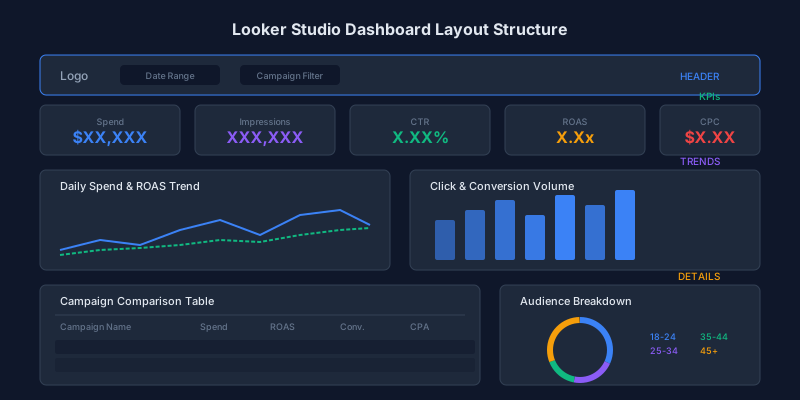
An effective Looker Studio Meta Ads dashboard follows an inverted pyramid structure. Start with high-level KPIs at the top, provide trend-based analysis in the middle, and surface granular breakdowns at the bottom. This layout mirrors how most stakeholders consume data: summary first, details on demand.
- Header section with logo, date range selector, and campaign filter controls
- Scorecard row displaying spend, impressions, clicks, CTR, CPC, and ROAS
- Time-series charts showing daily or weekly performance trends
- Campaign comparison table with conditional formatting for quick pattern recognition
- Creative performance gallery with thumbnail previews and engagement metrics
- Audience breakdown charts by age, gender, placement, and device
Keep each page focused on a single analytical theme. A three-page dashboard with Overview, Campaign Detail, and Creative Analysis pages is easier to navigate than a single page overloaded with dozens of charts.
Essential Metrics and Calculated Fields
The raw metrics from Meta Ads are useful, but calculated fields in Looker Studio let you derive the KPIs that matter most to your business. Building these formulas directly in the dashboard ensures consistency across every chart and scorecard.
| Metric | Formula | Use Case |
|---|---|---|
| ROAS | Purchase Value / Spend | Revenue efficiency |
| Cost per Lead | Spend / Leads | Lead generation efficiency |
| Thumb-Stop Rate | 3-Second Video Views / Impressions | Creative hook strength |
| Click-to-Purchase Rate | Purchases / Link Clicks | Landing page conversion quality |
| Frequency Cap Alert | IF(Frequency > 3, 'High', 'Normal') | Audience saturation warning |
| Budget Utilization | Spend / Daily Budget | Pacing health check |
Stop wasting ad budget
NovaStorm AI cuts Meta Ads CPA by 40% on average. Start free.
Blending data sources opens even more possibilities. Combine your Meta Ads data with Google Analytics to attribute post-click behavior, or join with your CRM export to calculate true customer acquisition cost rather than relying on pixel-based attribution alone.
Automating Reports and Sharing Access
One of the strongest advantages of using Looker Studio for your Meta Ads dashboard is its built-in scheduling and sharing functionality. Navigate to the share menu, select Schedule Email Delivery, and configure recipients, frequency, and the pages to include. Stakeholders receive a PDF snapshot or a live link at the cadence you define.
For agency teams managing multiple clients, template dashboards dramatically reduce setup time. Build one polished Looker Studio Meta Ads dashboard, then copy it and swap the data source for each new client. This approach ensures visual consistency and reduces the risk of errors in metric definitions.
Set your data source refresh rate to match your reporting cadence. Daily refreshes work for most teams, but high-spend accounts running time-sensitive promotions may benefit from more frequent syncs offered by premium connector plans.
Advanced Techniques for Power Users
Once your foundational dashboard is running, you can layer in advanced features that elevate your reporting. Community visualizations extend the default chart library with heatmaps, funnel charts, and Sankey diagrams. Parameter controls let viewers toggle between metrics without creating duplicate charts.
Data blending across multiple Meta ad accounts is particularly valuable for holding companies or franchise networks. Create a blended data source that unions all accounts, then add an account-level filter so executives can compare performance across business units in a single dashboard.
- Use CASE statements to group campaigns by funnel stage (Prospecting, Retargeting, Retention)
- Apply regex filters to isolate specific creative naming conventions
- Build drill-down pages linked from summary charts for one-click exploration
- Add annotations for major campaign launches or budget changes
- Create YoY comparison views using date range comparison controls
Common Pitfalls and How to Avoid Them
Even experienced analysts make mistakes when building their first Looker Studio Meta Ads dashboard. The most frequent issue is metric double-counting caused by incorrect data blending joins. Always verify row counts after blending and use left outer joins to preserve your primary data source integrity.
Another common trap is overloading dashboards with too many metrics. Resist the urge to display every available data point. Instead, curate a focused set of KPIs aligned with business objectives. A dashboard that tries to answer every question usually answers none of them well.
Finally, watch for data freshness discrepancies. If your Meta Ads connector refreshes every 24 hours but your Google Analytics source updates every 6 hours, blended charts may show misleading correlations. Document refresh schedules and add a last-updated timestamp to your dashboard header so viewers know how current the data is.
Building a Looker Studio Meta Ads dashboard is one of the most impactful reporting investments a media buying team can make. The combination of flexible visualization, zero licensing cost, and automated distribution creates a reporting workflow that scales from solo advertisers to large agency operations. Start with a simple one-page overview, iterate based on stakeholder feedback, and expand into multi-page analytical workbooks as your needs grow.
Novastorm AI automates Meta Ads routine — from monitoring to optimization. Learn more at novastorm.ai
Disclaimer: This article was generated with the assistance of AI and reviewed by the NovaStorm AI team. While we strive for accuracy, we recommend verifying specific data points and consulting official sources (linked where available) for critical business decisions.
Ready to automate your Meta Ads?
NovaStorm AI takes full responsibility for your campaigns — from monitoring to optimization.
Get Started FreeRelated Articles
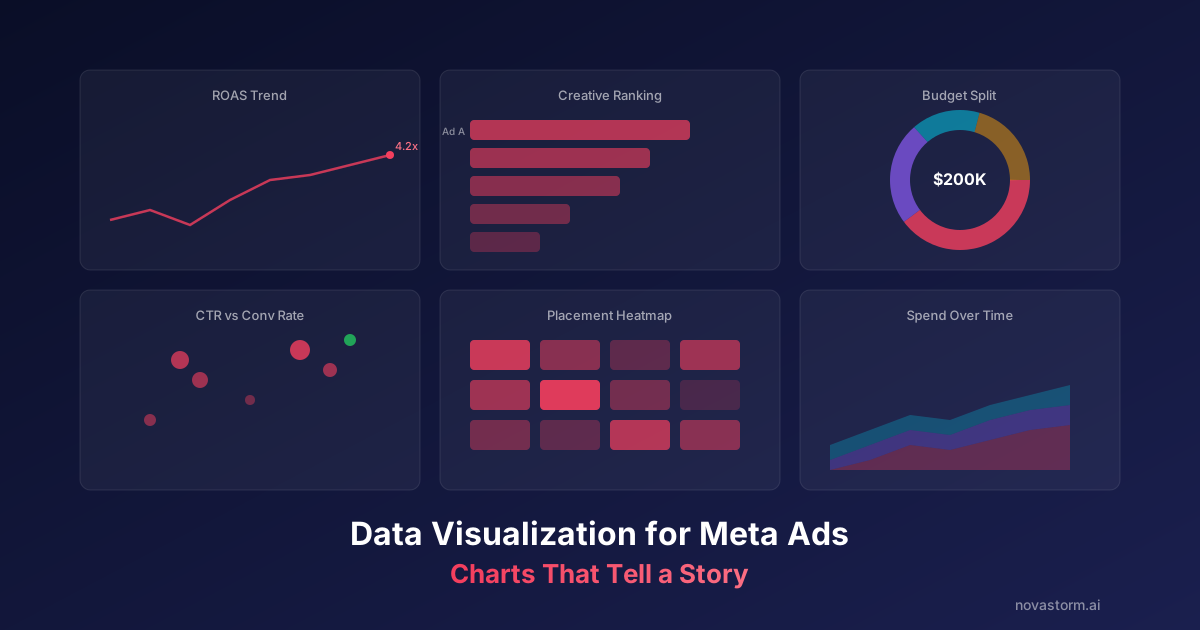
Data Visualization for Meta Ads: Charts That Tell a Story
Master data visualization for Meta Ads with chart types that communicate insights instantly. Learn which charts to use for spend, performance, and creative analysis.
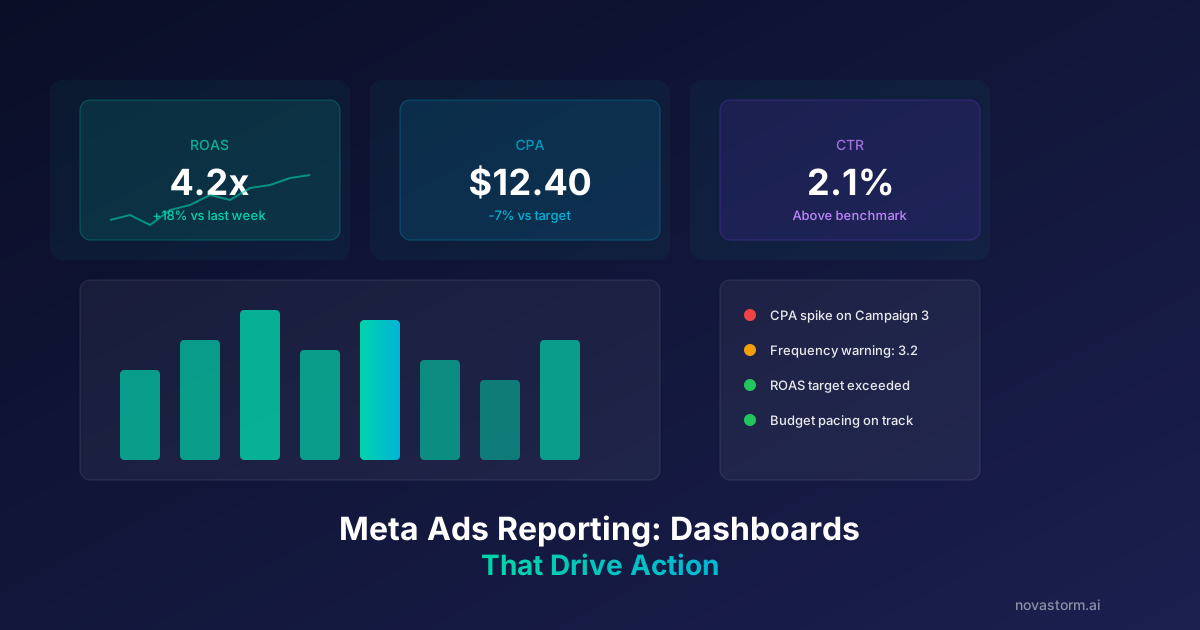
Meta Ads Reporting: Building Dashboards That Drive Action
Learn how to build Meta Ads reporting dashboards that drive real action. Discover the metrics, layouts, and automation strategies top advertisers use in 2026.
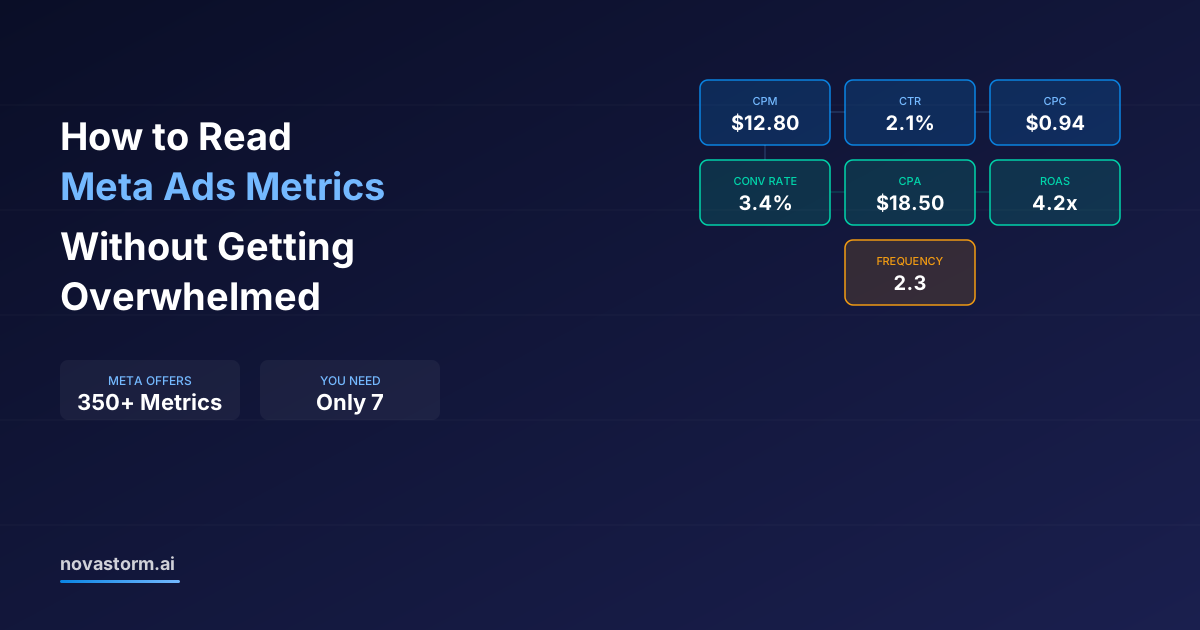
How to Read Meta Ads Metrics Without Getting Overwhelmed
Learn how to read Meta Ads metrics without getting overwhelmed. A focused framework of 7 essential metrics that tell you everything you need to optimize.