Data Visualization for Meta Ads: Charts That Tell a Story
Master data visualization for Meta Ads with chart types that communicate insights instantly. Learn which charts to use for spend, performance, and creative analysis.
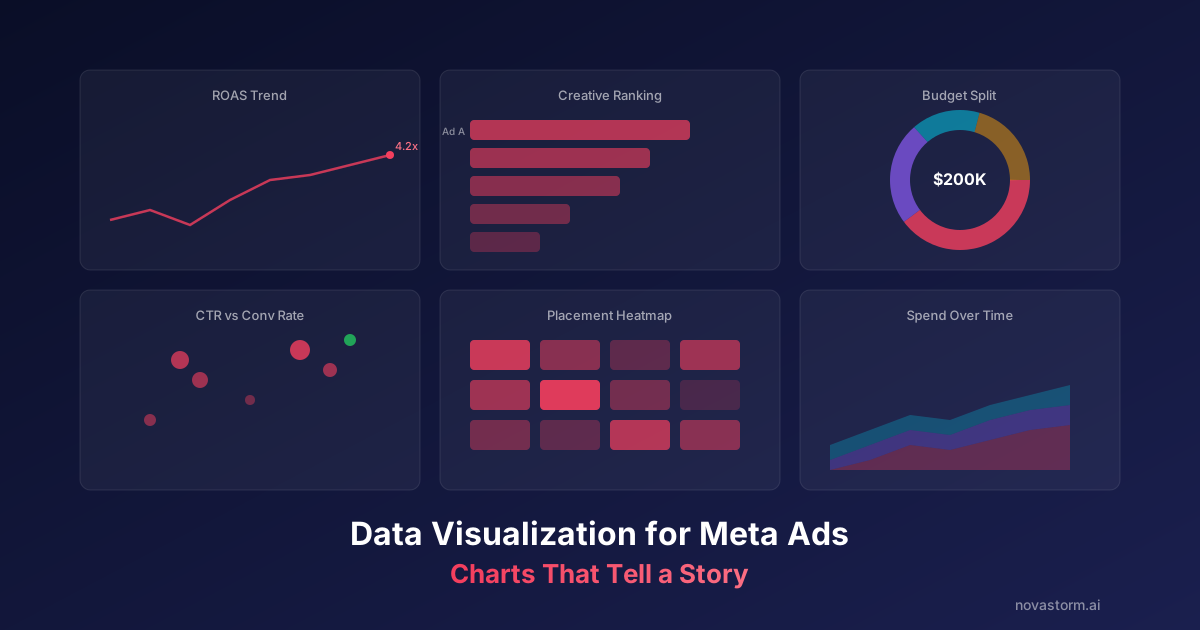
Data visualization for Meta Ads determines whether your team acts on insights or ignores them. A well-chosen chart communicates a performance trend in 2 seconds that a spreadsheet takes 2 minutes to convey. Yet most Meta Ads reports rely on default tables and poorly formatted bar charts that obscure rather than reveal the story in the data.
The right visualization matches the data type to the chart type. Trends need line charts, compositions need stacked bars, comparisons need horizontal bars, and distributions need histograms. Choosing the wrong chart type is like speaking the wrong language: the information is there, but nobody understands it.
Chart Selection Framework for Meta Ads Data
Before creating any chart, ask one question: what comparison am I trying to show? The answer determines the chart type. There are four fundamental comparison types in Meta Ads reporting, and each maps to specific visualization formats.
| Comparison Type | Best Chart Types | Meta Ads Use Case |
|---|---|---|
| Trend over time | Line chart, area chart | ROAS by week, CPM trends, spend pacing |
| Part-to-whole | Stacked bar, donut chart | Budget split by campaign, placement distribution |
| Ranking/comparison | Horizontal bar chart | Top campaigns by ROAS, creative performance ranking |
| Correlation | Scatter plot | Spend vs conversions, CPM vs CTR relationship |
| Distribution | Histogram, box plot | CPA distribution across ad sets, audience size spread |
Pro tip: When in doubt, use a simple line chart for trends and a horizontal bar chart for comparisons. These two chart types cover 80% of Meta Ads reporting needs and are universally understood.
Visualizing Meta Ads Performance Trends
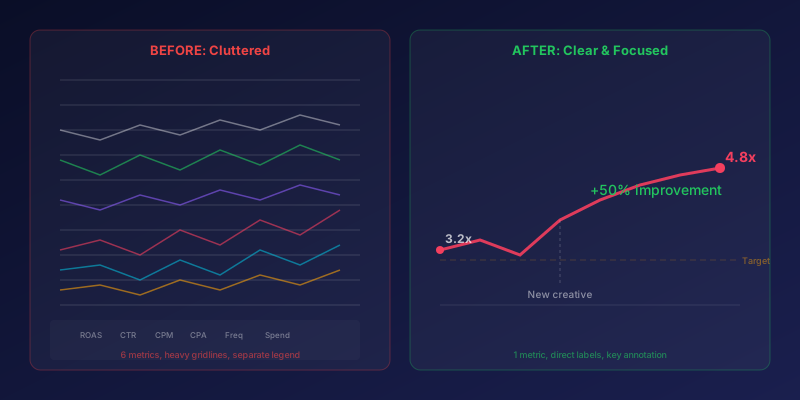
Line charts are your primary tool for showing how metrics change over time. Use them for ROAS trends, CPA trends, spend pacing, and conversion volume. The key design principle: show no more than 3-4 lines on a single chart. Beyond that, the visual becomes cluttered and unreadable.
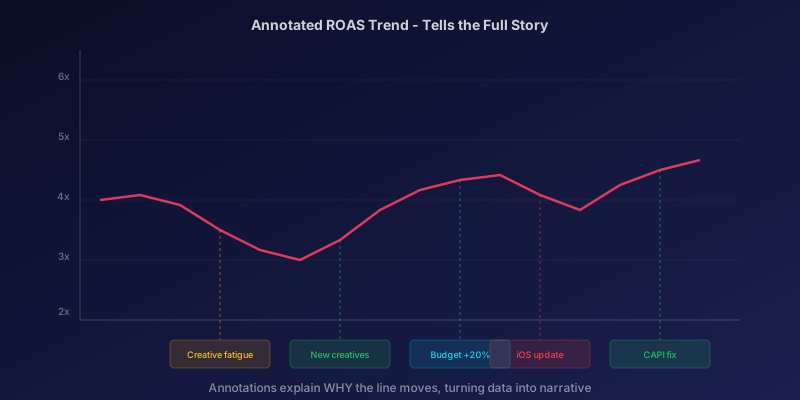
Add context to your trend lines with annotations. Mark the dates of major changes: new creative launches, budget increases, audience shifts, and algorithm updates. Without annotations, a ROAS drop is just a line going down. With annotations, it becomes a story about what happened and why.
Data Visualization for Meta Ads: Creative Performance
Creative analysis requires comparison charts. Use horizontal bar charts to rank ads by CTR, conversion rate, or ROAS. Horizontal orientation is better than vertical for creative names because labels are readable without rotation.
For creative fatigue analysis, use a dual-axis chart with CTR on one axis and frequency on the other. When the lines cross (CTR declining while frequency rises), you have a clear visual signal that creative refresh is needed. This pattern is far more actionable than a table of numbers.
- Bar charts for creative ranking: sort by performance metric, highlight top and bottom performers
- Scatter plots for efficiency: plot CTR vs conversion rate to find ads that click well AND convert
- Small multiples for A/B tests: show the same chart for each variant side by side
- Heatmaps for placement performance: rows are creatives, columns are placements, color is ROAS
Budget and Spend Visualizations
Stop wasting ad budget
NovaStorm AI cuts Meta Ads CPA by 40% on average. Start free.
Budget allocation charts should answer: where is the money going and is it working? Use stacked area charts to show spend distribution over time across campaigns. Use waterfall charts to explain how total spend changed from one period to the next.
Pacing charts are critical for daily management. Show planned spend as a straight line and actual spend as a stepped line. The gap between them instantly shows whether campaigns are under-pacing (throttled by audience saturation or low bids) or over-pacing (risk of running out of budget early).
Data insight: Teams that use visual pacing charts catch budget anomalies 3x faster than teams that rely on numerical comparisons alone. A $500/day under-pace is easy to miss in a table but impossible to miss on a chart.
Design Principles That Improve Comprehension
Good data visualization follows consistent design principles. Use these rules to make every chart in your Meta Ads reports more effective and easier to read.
- Remove chart junk: no 3D effects, no background images, no decorative gridlines
- Use consistent colors: assign one color per campaign/metric and keep it consistent across all charts
- Label directly: put labels on the data points, not in a separate legend that requires back-and-forth reading
- Start Y-axis at zero for bar charts (to avoid misleading comparisons), but not necessarily for line charts (to show variation)
- Use pre-attentive attributes: color, size, and position to highlight the most important data points
Building a Chart Library for Your Team
Create a standardized chart library with templates for the 8-10 most common Meta Ads visualizations. This ensures consistency across reports, reduces creation time, and makes charts instantly recognizable to your team.
| Chart Template | Primary Metric | Update Frequency |
|---|---|---|
| ROAS trend line (7-day rolling) | Blended ROAS | Daily |
| Campaign spend stacked area | Spend by campaign | Daily |
| Creative performance bars | CTR, Conv Rate by ad | Weekly |
| Placement heatmap | ROAS by placement | Weekly |
| Budget pacing line | Planned vs actual spend | Daily |
| Audience overlap Venn | Overlap percentage | Monthly |
| CPA distribution histogram | CPA by ad set | Weekly |
| Funnel throughput bars | Users by stage | Weekly |
Tools for Meta Ads Data Visualization
Choose visualization tools based on your team's technical ability and update frequency needs. Looker Studio (free) handles most use cases with direct Meta Ads connectors. Tableau and Power BI offer more advanced charting for enterprise teams. For real-time needs, custom dashboards using Chart.js or D3.js provide maximum flexibility.
Pro tip: Start with Looker Studio templates, then customize. The 80/20 rule applies: 80% of your visualization needs can be met with templates. Only build custom solutions for the 20% that templates cannot handle.
Novastorm AI automates Meta Ads routine — from monitoring to optimization. Learn more at novastorm.ai
Disclaimer: This article was generated with the assistance of AI and reviewed by the NovaStorm AI team. While we strive for accuracy, we recommend verifying specific data points and consulting official sources (linked where available) for critical business decisions.
Ready to automate your Meta Ads?
NovaStorm AI takes full responsibility for your campaigns — from monitoring to optimization.
Get Started FreeRelated Articles
Looker Studio and Meta Ads: Building Custom Performance Dashboards
Learn how to build custom Looker Studio dashboards for Meta Ads. Step-by-step guide to connecting data, creating visualizations, and automating performance reports.
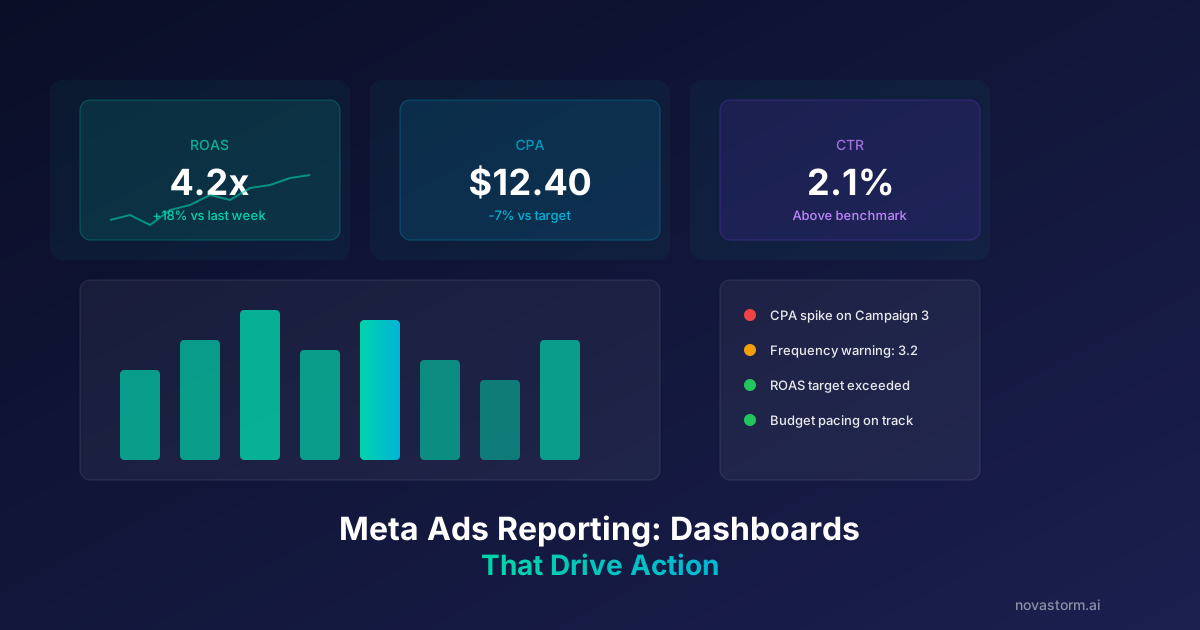
Meta Ads Reporting: Building Dashboards That Drive Action
Learn how to build Meta Ads reporting dashboards that drive real action. Discover the metrics, layouts, and automation strategies top advertisers use in 2026.
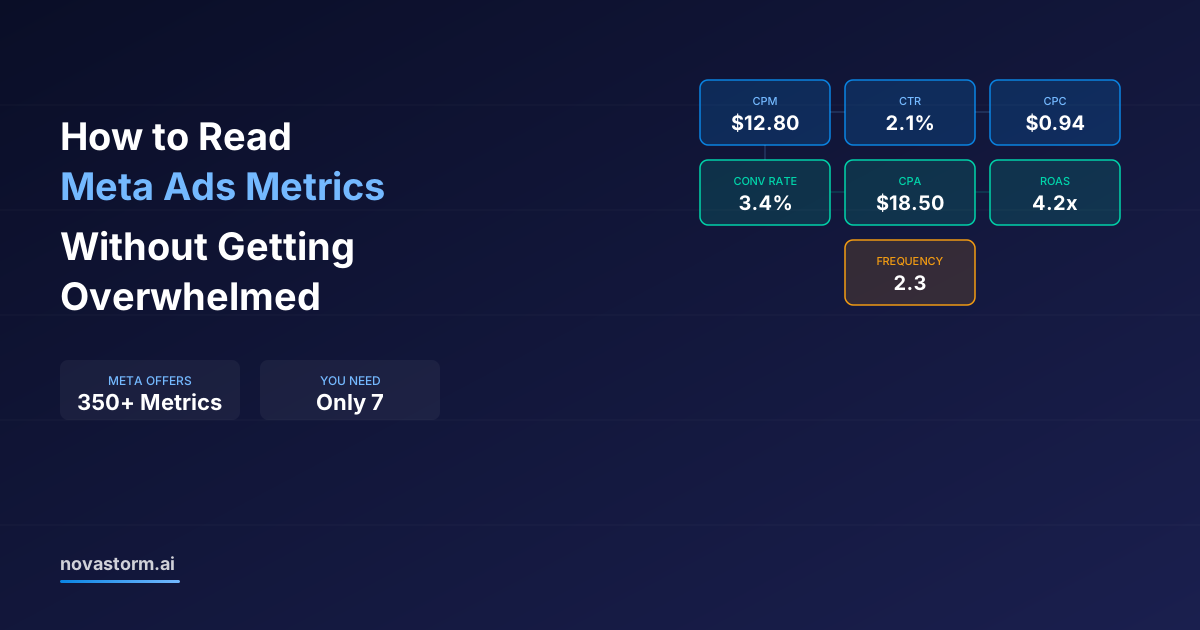
How to Read Meta Ads Metrics Without Getting Overwhelmed
Learn how to read Meta Ads metrics without getting overwhelmed. A focused framework of 7 essential metrics that tell you everything you need to optimize.