Meta Ads Reporting: Building Dashboards That Drive Action
Learn how to build Meta Ads reporting dashboards that drive real action. Discover the metrics, layouts, and automation strategies top advertisers use in 2026.
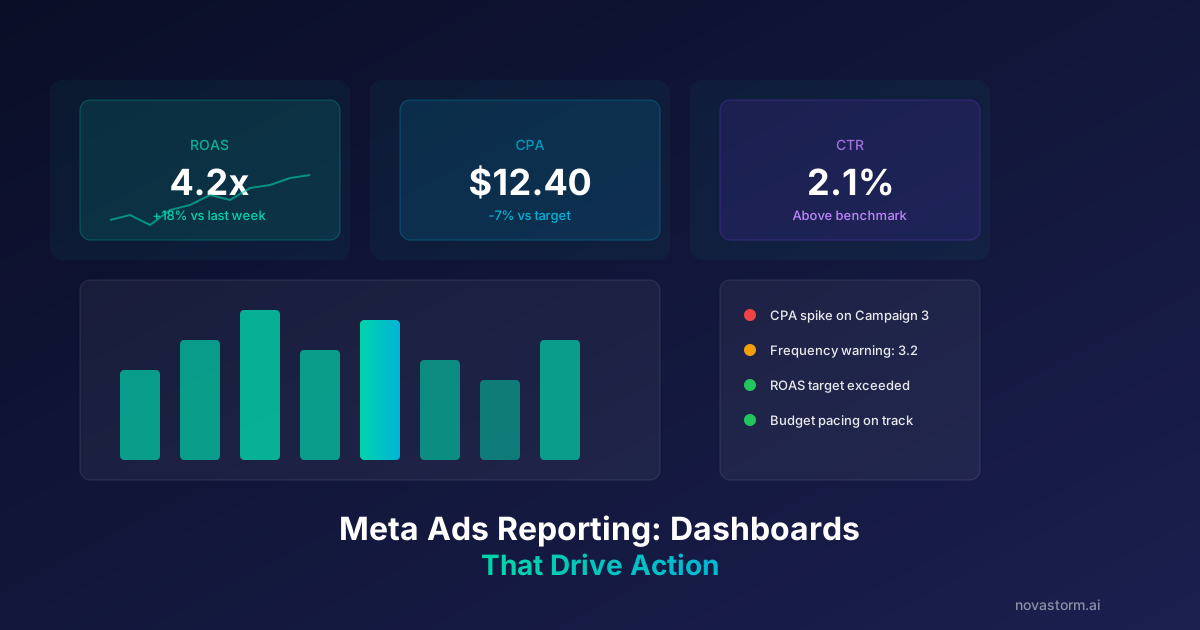
Most Meta Ads reporting dashboards fail for one simple reason: they display data without driving decisions. A well-designed Meta Ads reporting dashboard transforms raw campaign metrics into clear action items that your team can execute on immediately. Yet 72% of marketing teams report spending more time building reports than acting on them.
The difference between a vanity dashboard and an actionable one comes down to structure, metric selection, and alert logic. In this guide, we break down exactly how to build dashboards that make every stakeholder faster and smarter.
Why Most Meta Ads Reporting Dashboards Fail
The typical reporting workflow looks like this: export CSV from Ads Manager, paste into a spreadsheet, add some charts, email the PDF. By the time anyone reads it, the data is 3-5 days old and the window for action has closed.
Common failure modes include metric overload (showing 40+ columns), lack of context (no benchmarks or period-over-period comparison), and missing recommendations. A dashboard with 50 metrics is not more useful than one with 8 carefully chosen KPIs.
- Too many metrics dilute attention and slow decision-making
- Static reports cannot surface real-time anomalies
- Missing benchmarks make it impossible to judge performance
- No clear owner or action tied to each metric section
The 3-Layer Dashboard Architecture
Effective Meta Ads dashboards use a layered approach. Each layer serves a different audience and decision speed. This architecture ensures that executives, managers, and specialists all get what they need without wading through irrelevant data.
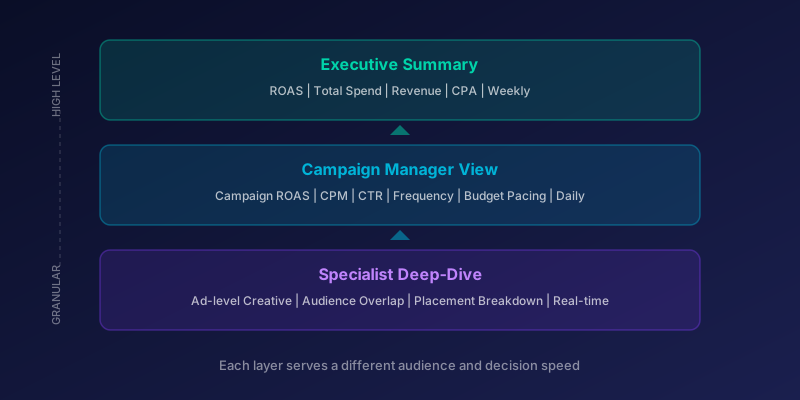
| Layer | Audience | Metrics | Update Frequency |
|---|---|---|---|
| Executive Summary | C-suite / VP | Blended ROAS, Total Spend, Revenue, CPA | Weekly |
| Campaign Manager | Media Buyers | Campaign ROAS, CPM, CTR, Frequency, Budget Pacing | Daily |
| Specialist Deep-Dive | Analysts | Ad-level creative metrics, Audience overlap, Placement breakdown | Real-time |
Choosing Metrics That Trigger Action
Every metric on your dashboard should answer one question: what should I do next? If a metric does not lead to a specific action, remove it. This principle alone will cut most dashboards by 60%.
Map each metric to a decision threshold and an action. For example, if CPM rises above $12 for prospecting campaigns, the action is to refresh creative or expand audience targeting. If frequency exceeds 3.5 in a 7-day window, pause the ad set and rotate in new assets.
| Metric | Threshold | Action |
|---|---|---|
| CPM | > $12 (prospecting) | Refresh creative or expand audience |
| Frequency | > 3.5 / 7 days | Pause ad set, rotate creative |
| CTR | < 0.8% | Test new hooks and thumbnails |
| CPA | > 1.4x target | Review audience and bidding strategy |
| ROAS | < 0.8x target for 3 days | Reduce budget or pause campaign |
Pro tip: Color-code metrics using a traffic-light system. Green for on-target, yellow for approaching threshold, red for action required. This visual shorthand cuts dashboard reading time by 40%.
Building Automated Alert Systems
Dashboards are passive. People need to open them. Alerts are active. They push critical information to the right person at the right time. Combine both for a complete reporting system.
Stop wasting ad budget
NovaStorm AI cuts Meta Ads CPA by 40% on average. Start free.
Set up automated alerts for three categories: budget pacing anomalies (spend 20% above or below daily target), performance degradation (CPA rising 30%+ over 48 hours), and opportunity signals (an ad set hitting 2x ROAS target for 3 consecutive days).
- Budget alerts: Slack notification when daily spend deviates more than 20% from plan
- Performance alerts: Email when CPA exceeds target by 30% for 48 hours
- Opportunity alerts: Push notification when ROAS exceeds 2x target for 3 days
- Creative fatigue alerts: Warning when frequency hits 3.0 on any active ad set
Data insight: Teams using automated alert systems alongside dashboards reduce wasted ad spend by an average of 18% compared to teams relying on manual report review alone.
Dashboard Layout Best Practices
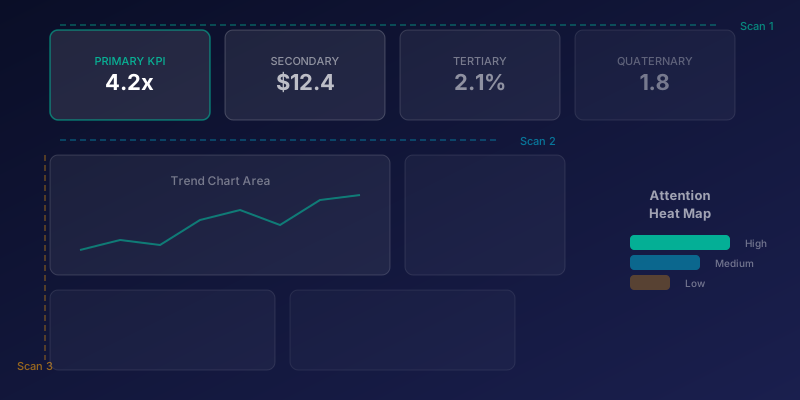
Layout matters more than most teams realize. Eye-tracking studies show that dashboard users follow an F-pattern: they scan the top row left to right, then move down the left side. Place your most critical KPIs in the top-left quadrant.
Use consistent card sizes for related metrics. Group spend metrics together, performance metrics together, and creative metrics together. Add sparklines (mini trend charts) next to each KPI so viewers can instantly see direction without clicking into details.
Connecting Dashboards to Action Workflows
The final step is closing the loop between insight and action. Every red-flagged metric should link to a documented playbook. When CPA spikes, the team should not need to brainstorm a response, they should execute a pre-defined checklist.
Build a response matrix that maps each alert type to a specific workflow. Store these playbooks in your project management tool and link them directly from the dashboard. This turns your reporting system from a passive display into an operational command center.
- Link each alert to a pre-defined action playbook
- Assign clear owners for each metric category
- Set SLAs for response time (e.g., budget anomalies addressed within 4 hours)
- Review and update thresholds monthly based on rolling performance data
Warning: Avoid the temptation to add every available metric. Dashboard bloat is the number one reason reporting systems get abandoned. Start with 8-12 core KPIs and only add metrics that have proven they drive decisions.
Measuring Dashboard Effectiveness
Track whether your dashboard is actually working. Measure three things: time-to-action (how quickly does the team respond to anomalies), decision accuracy (did the actions taken improve outcomes), and adoption rate (how often is the dashboard actually opened).
If your team is not opening the dashboard at least 3 times per week, something is wrong. Either the data is stale, the metrics are not relevant, or the layout is too complex. Survey your team quarterly and iterate on the design based on their feedback.
Pro tip: Add a "last action taken" log to your dashboard. When team members can see that their colleagues are using the dashboard to make decisions, adoption increases by up to 35%.
Novastorm AI automates Meta Ads routine — from monitoring to optimization. Learn more at novastorm.ai
Disclaimer: This article was generated with the assistance of AI and reviewed by the NovaStorm AI team. While we strive for accuracy, we recommend verifying specific data points and consulting official sources (linked where available) for critical business decisions.
Ready to automate your Meta Ads?
NovaStorm AI takes full responsibility for your campaigns — from monitoring to optimization.
Get Started FreeRelated Articles
Looker Studio and Meta Ads: Building Custom Performance Dashboards
Learn how to build custom Looker Studio dashboards for Meta Ads. Step-by-step guide to connecting data, creating visualizations, and automating performance reports.
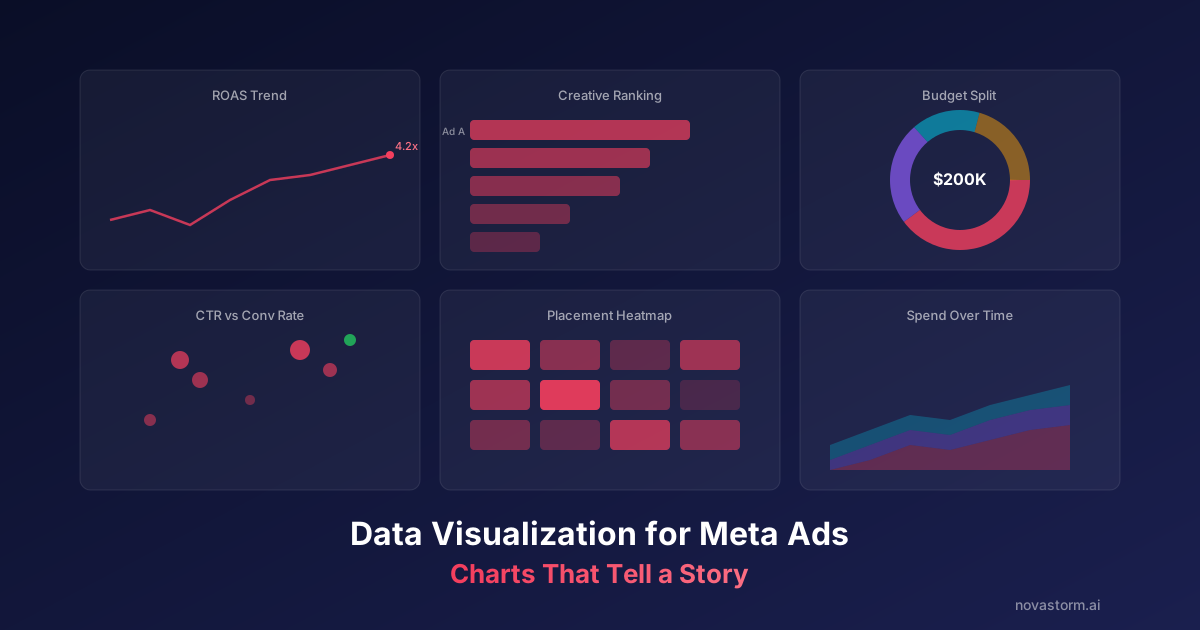
Data Visualization for Meta Ads: Charts That Tell a Story
Master data visualization for Meta Ads with chart types that communicate insights instantly. Learn which charts to use for spend, performance, and creative analysis.
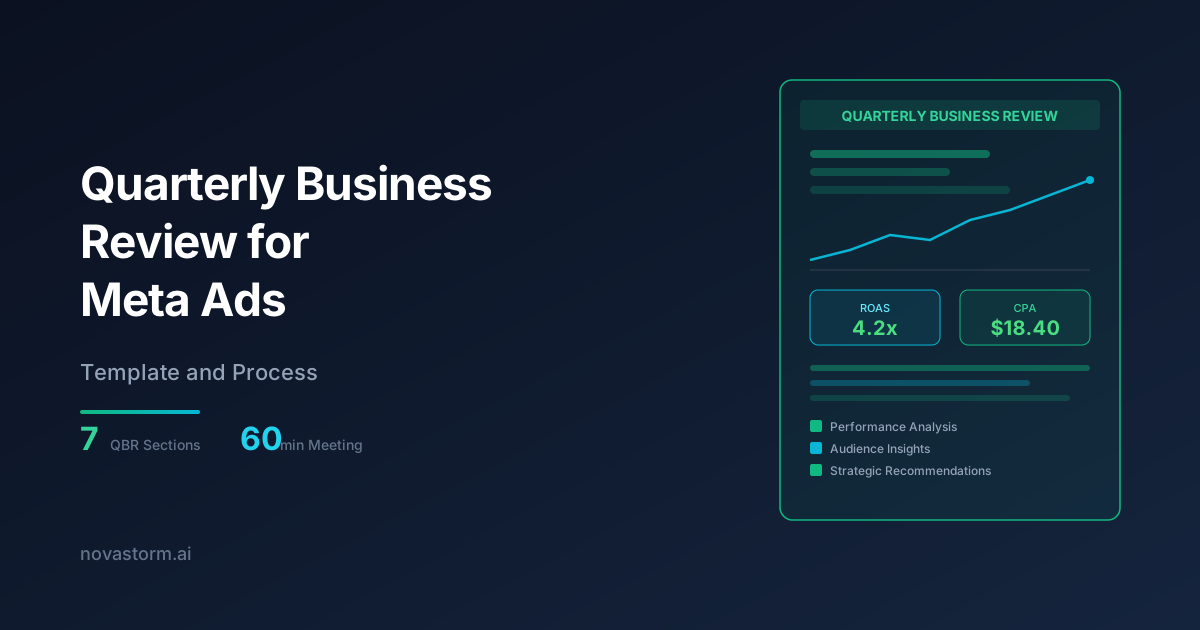
Quarterly Business Review for Meta Ads: Template and Process
Build a structured quarterly business review for Meta Ads with our proven template covering performance analysis, strategic insights, and actionable next steps.