Product Catalog Ads on Meta: DPA Setup Guide for E-commerce
Learn how to set up Dynamic Product Ads (DPA) on Meta for e-commerce. Complete guide to catalog setup, feed requirements, dynamic templates, and retargeting strategies.
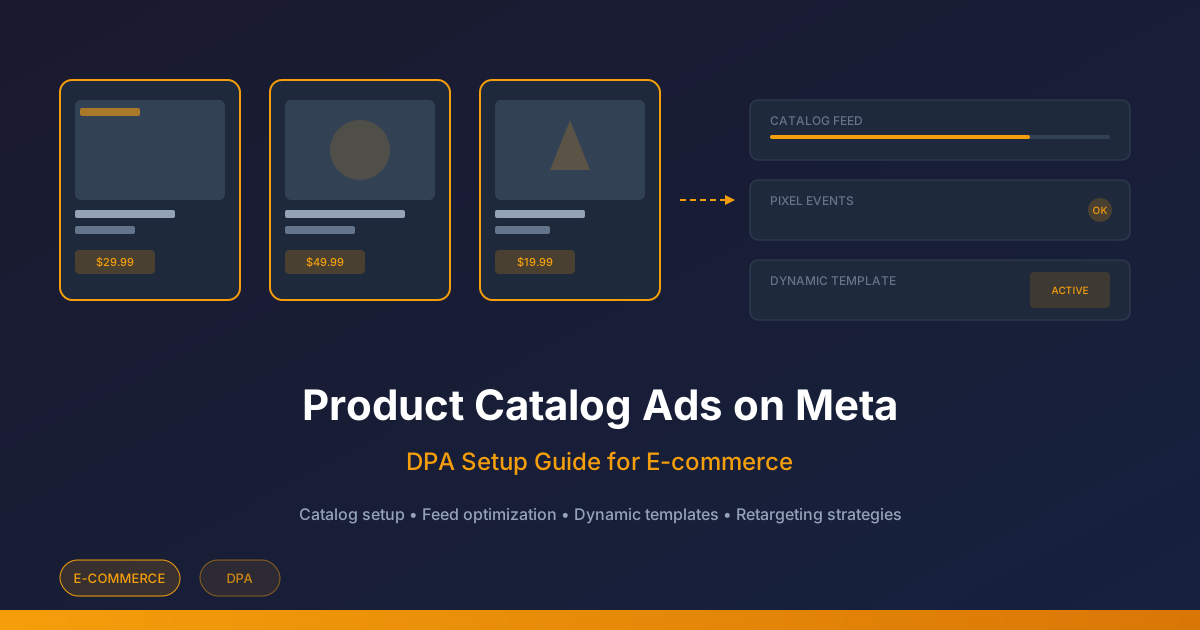
Why Product Catalog Ads on Meta Are Essential for E-commerce
Product catalog ads on Meta represent one of the most powerful tools available to e-commerce advertisers today. Dynamic Product Ads (DPA) automatically show relevant products to people who have expressed interest on your website, app, or elsewhere on the internet. Instead of creating individual ads for each product, you upload your entire catalog and let Meta's algorithm match the right product to the right person at the right time. For stores with hundreds or thousands of SKUs, this is not just convenient but absolutely necessary for scalable advertising.
The concept behind DPA is straightforward. A visitor browses your online store, views a product, maybe adds it to the cart, but leaves without purchasing. DPA automatically serves that exact product (or similar items) back to the visitor as they scroll through Facebook or Instagram. The result is a highly personalized ad experience that feels relevant rather than intrusive, which is exactly why DPA campaigns consistently outperform static ad formats for e-commerce.
What Is DPA and How Does It Work
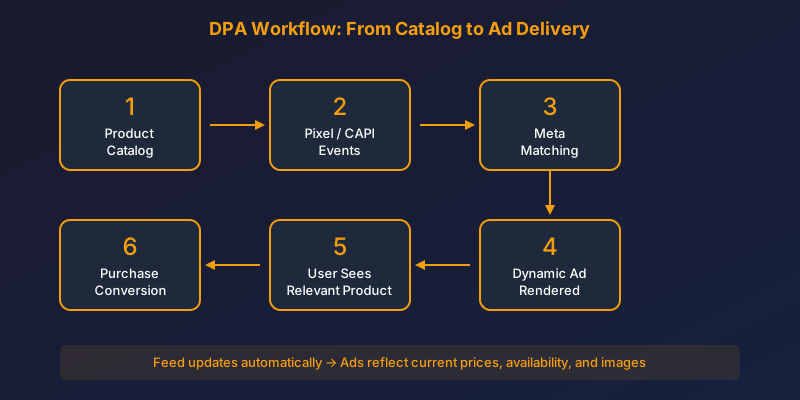
Dynamic Product Ads pull product information directly from your catalog feed and combine it with Meta's audience signals. When someone triggers a pixel event, such as viewing a product or adding it to a cart, Meta records that interaction and uses it to serve the most relevant product ad later. The system operates on a template basis, meaning you design the ad layout once, and Meta populates it dynamically with product images, titles, prices, and descriptions from your feed.
DPA campaigns run within the Advantage+ catalog sales objective (formerly called dynamic ads). They require three components to function: a product catalog uploaded to Meta Commerce Manager, a Meta Pixel or Conversions API installed on your site tracking standard e-commerce events, and a campaign configured to use that catalog with the appropriate audience targeting.
Setting Up Your Product Catalog
The product catalog is the foundation of every DPA campaign. Without a well-structured, frequently updated catalog, your dynamic ads will underperform or fail entirely. You create and manage catalogs in Meta Commerce Manager, which is accessible through your Business Manager account.
To create a catalog, navigate to Commerce Manager, select 'Add Catalog,' choose E-commerce as the catalog type, and decide whether to upload products manually or connect a partner platform. For most e-commerce businesses, connecting through an integration partner like Shopify or WooCommerce is the recommended approach because it automates product syncing.
Feed Requirements and Best Practices
Your product feed is the data file that populates your catalog. Meta accepts feeds in CSV, TSV, XML (RSS/ATOM), and Google Sheets formats. Each product in your feed must include several required fields, and providing optional fields significantly improves ad performance.
| Field | Required | Description | Best Practice |
|---|---|---|---|
| id | Yes | Unique product identifier | Match your internal SKU system |
| title | Yes | Product name | Include key attributes like color or size |
| description | Yes | Product description | Keep under 5000 characters, front-load benefits |
| availability | Yes | In stock or out of stock | Update frequently to avoid disapprovals |
| condition | Yes | New, refurbished, or used | Most e-commerce will use 'new' |
| price | Yes | Product price with currency | Include sale_price for discounted items |
| link | Yes | Product page URL | Use UTM parameters for tracking |
| image_link | Yes | Main product image URL | Min 500x500px, white background preferred |
| brand | Yes | Brand name | Consistent formatting across all products |
| google_product_category | Recommended | GPC taxonomy | Be as specific as possible |
| custom_label_0-4 | Optional | Custom groupings | Use for margin tiers, seasons, or promos |
Use custom labels to segment your catalog by profit margin, seasonal relevance, or promotional status. This lets you create product sets that align with your business goals, like running higher bids on high-margin products.
Dynamic Templates and Creative Strategy
Dynamic ad templates define how your product information appears in the ad unit. Meta offers several formats for DPA including single image, carousel, and collection ads. The carousel format is the most popular for DPA because it showcases multiple products in a swipeable format, giving users more options and increasing engagement.
When building your template, you can customize the overlay with price badges, discount percentages, free shipping callouts, and brand frames. These overlays pull data directly from your catalog feed, so if a product goes on sale, the overlay updates automatically. Catalog-level creative enhancements include adding borders, cropping product images to a consistent aspect ratio, and applying brand colors to frames.
- Use high-quality product images with consistent backgrounds for a professional carousel look
- Add price overlays to set expectations before the click, improving lead quality
- Include a sale badge overlay when products have both price and sale_price in the feed
- Test collection ad format for mobile-heavy audiences to create a storefront experience
- Keep primary text short and benefit-focused since the product details do the selling
Stop wasting ad budget
NovaStorm AI cuts Meta Ads CPA by 40% on average. Start free.
Retargeting vs Prospecting Catalogs
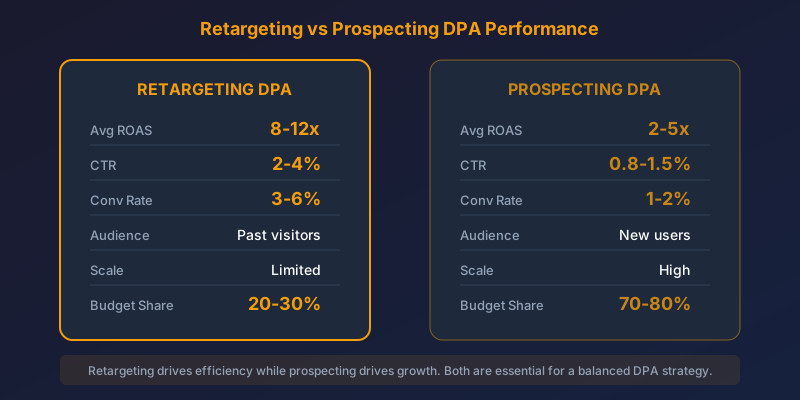
DPA campaigns serve two distinct purposes: retargeting existing visitors and prospecting new customers. Understanding the difference and structuring your campaigns accordingly is critical for efficient budget allocation.
Retargeting DPA targets people who have already interacted with your products. These audiences include website visitors who viewed specific product pages, users who added items to cart but did not purchase, and past customers you want to bring back. Retargeting DPA typically delivers the highest ROAS because the audience already has intent and familiarity with your brand.
Prospecting DPA, often called broad audience DPA, targets people who have never visited your website. Meta uses signals from your catalog and pixel data to find new people likely to purchase. This audience type casts a wider net and typically has a lower ROAS than retargeting, but it is essential for growth. Without prospecting, you eventually exhaust your retargeting pool.
Shopify and WooCommerce Integration
Shopify merchants can connect their product catalog directly through the Facebook and Instagram sales channel app. Once installed, the app syncs your entire product inventory to Meta Commerce Manager automatically. Any changes to product titles, prices, images, or availability in Shopify are reflected in your catalog within hours. The app also handles pixel installation and Conversions API setup, making it the easiest path to running DPA.
WooCommerce users can connect through the Facebook for WooCommerce plugin. The setup process involves installing the plugin, connecting your Facebook Business account, and mapping your product data to Meta's required fields. WooCommerce feeds tend to require more manual optimization since product data structure varies between stores. Pay special attention to image quality and description formatting when using WooCommerce.
Catalog Optimization Tips for Better Performance
A well-optimized catalog directly impacts your DPA performance. Think of your catalog as the raw material for your ads. Poor input quality means poor ad quality. Here are the most impactful optimizations you can make.
- Update your feed at least daily. Products going out of stock or prices changing without feed updates lead to disapprovals and poor user experience.
- Optimize product titles for search and relevance. Include the brand name, product type, and key distinguishing attributes like color or size.
- Use multiple product images by adding additional_image_link fields. Meta can test different images and show the best performer.
- Exclude low-performing products by creating product sets that filter out items with zero sales or very low margins.
- Add sale_price when running promotions so Meta can automatically display the discount in your ad overlays.
- Implement content_type correctly. Use 'product' for individual items and 'product_group' for variants.
- Monitor your catalog diagnostics dashboard in Commerce Manager weekly for feed errors, warnings, and suggestions.
Feed errors can silently kill your DPA performance. A single misformatted price field or broken image URL can cause Meta to pause delivery for affected products. Check your Commerce Manager diagnostics at least once a week.
Advanced Segmentation with Product Sets
Product sets let you group catalog items for specific campaign strategies. Instead of promoting your entire catalog equally, you can create product sets based on category, price range, margin tier, or custom labels. For example, you might create a 'High Margin' product set using custom_label_0 and allocate more budget to promoting those items. Similarly, a 'Best Sellers' product set can feature your top-converting products for prospecting campaigns where you want to put your best foot forward.
Seasonal product sets are another powerful tactic. Tag products with seasonal custom labels and activate or deactivate product sets as seasons change. This prevents showing winter coats in summer or swimwear in December, improving relevance scores and reducing wasted spend.
The most successful DPA advertisers treat their product catalog as a living asset, not a set-and-forget upload. Regular feed optimization, strategic product sets, and continuous creative testing on templates separate top performers from average results.
Getting DPA right takes effort upfront, but the payoff is substantial. Once your catalog is clean, your feed is optimized, and your campaign structure separates retargeting from prospecting, you have a system that scales with your product inventory. Every new product you add automatically enters your advertising ecosystem without any additional creative work. That scalability is what makes Dynamic Product Ads the backbone of e-commerce advertising on Meta.
Novastorm AI automates Meta Ads routine — from monitoring to optimization. Learn more at novastorm.ai
Disclaimer: This article was generated with the assistance of AI and reviewed by the NovaStorm AI team. While we strive for accuracy, we recommend verifying specific data points and consulting official sources (linked where available) for critical business decisions.
Ready to automate your Meta Ads?
NovaStorm AI takes full responsibility for your campaigns — from monitoring to optimization.
Get Started FreeRelated Articles
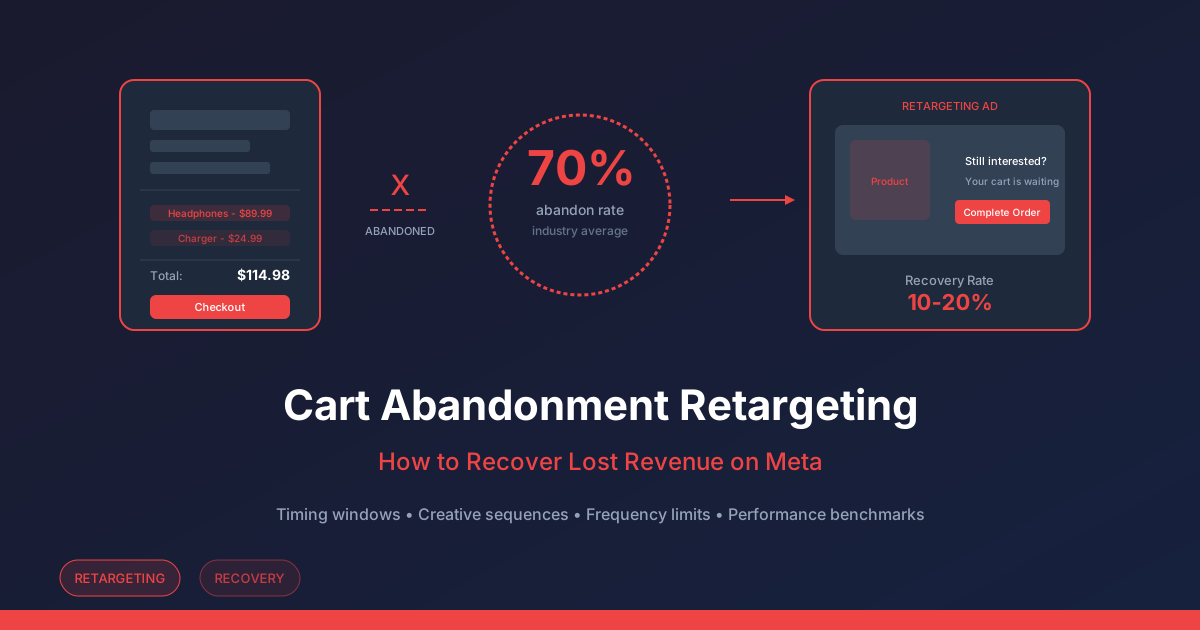
Cart Abandonment Retargeting: How to Recover Lost Revenue on Meta
Master cart abandonment retargeting on Meta. Learn optimal retargeting windows, creative strategies, frequency limits, and multi-touch sequences to recover lost revenue.
Cross-Platform Retargeting: Meta + Google Unified Strategy
Build a unified cross-platform retargeting strategy combining Meta and Google Ads. Learn audience sync, sequential messaging, attribution, and budget allocation across platforms.

Instagram Shopping Ads: Product Tagging Best Practices
Learn product tagging best practices for Instagram Shopping Ads. Discover catalog requirements, creative optimization, and strategies to boost conversion rates from tagged products.